Track Inventory and Auto-Reprice
What it is
The Inventory module is where you store your diamond stock in Stone Insights and keep its pricing up to date. You add stones — individually or via CSV import — and the platform tracks each one with its specs, status, and prices. When market conditions shift, you run a reprice session that recalculates recommended prices for part or all of your inventory in a single operation. You review the proposed changes, accept or reject each one, and apply. The platform keeps a full audit trail of every price change.
Why you'd use it
- You want a single place to track every stone you hold, with statuses like in stock, reserved, on memo, or sold.
- You need to know which stones are overpriced or underpriced relative to the current market without looking them up one by one.
- You want to reprice a filtered set of stones in one operation instead of running individual recommendations.
- You want a scheduled reprice so prices stay current without daily manual effort.
- You need an audit trail showing what changed, when, and by how much.
Step-by-step
Add a stone to inventory
- Open the sidebar and go to Inventory → Stones (or visit
/app/inventory/stones). - Click Add Stone in the top-right corner. A dialog opens.
- Fill in the required fields: Stock ID, Shape, Carat, Color, Clarity, and Diamond Type.
- Optionally add Cut, Certificate ID, Supplier Price, Listed Price, and Tags.
- Click Save. The stone appears in the table.
Run a reprice session
- Go to Inventory → Reprice (or visit
/app/inventory/reprice/new). - Select a Saved Filter to choose which stones to reprice. The form shows a live count of matching stones.
- Select a Pricing Profile whose margin and strategy rules should apply.
- Optionally expand Advanced Options and set guardrails: Max Price Change %, Min Confidence, and Lock Period Days.
- Click Submit. The platform creates a session and begins calculating new prices.
- Wait for the calculation to finish. The page polls automatically and shows progress. For large sets this may take a minute or two.
- When the status changes to Ready for Review, the review table appears.
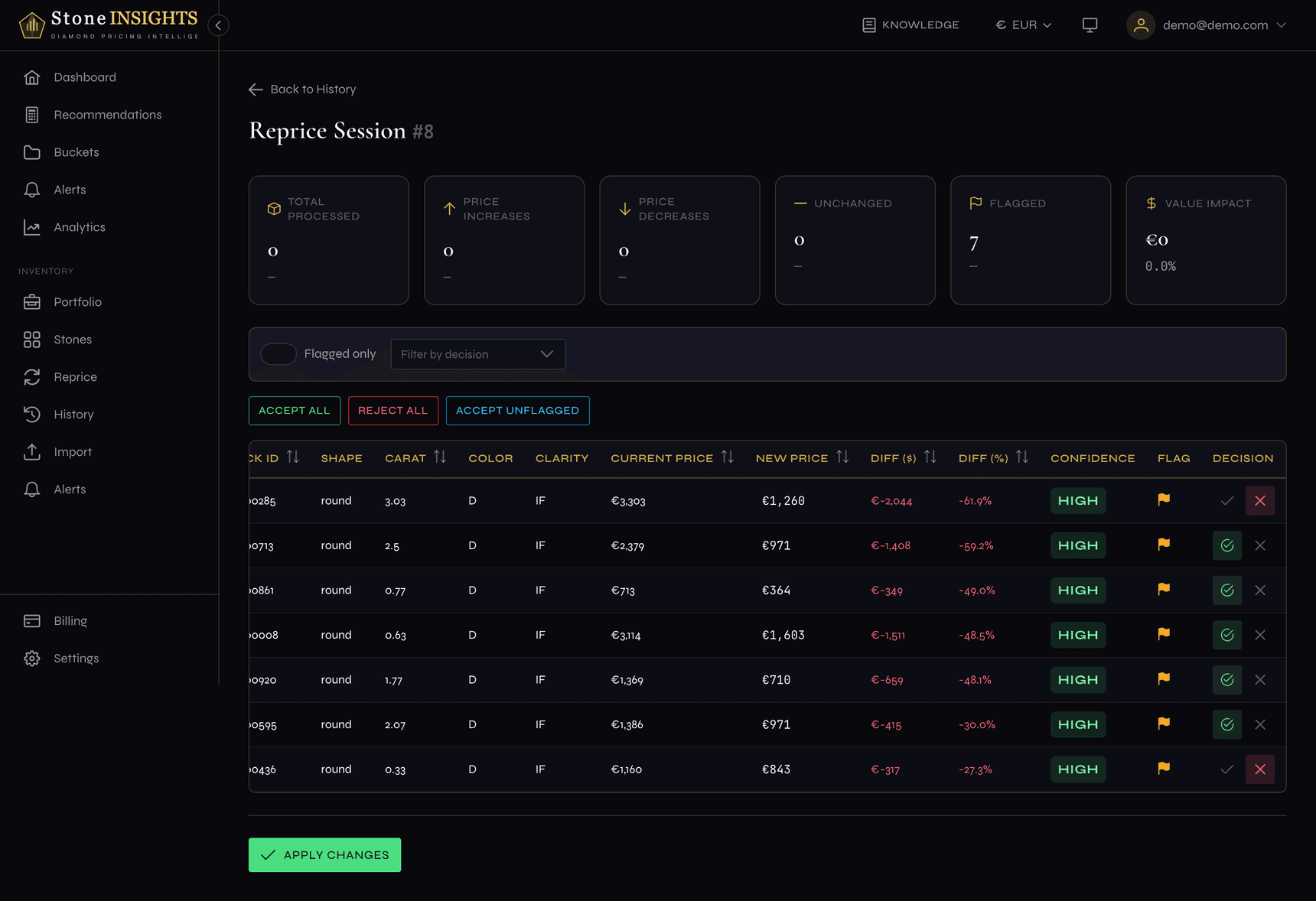
- Review each row. For every stone the table shows the current price, recommended price, change amount, change percentage, and margin impact. Flagged items — those exceeding the max change, with low confidence, recently locked, or missing market data — are highlighted.
- For each row, choose Accept, Reject, or enter a Custom price. Use the bulk actions at the top — Accept All, Reject All, or Accept Unflagged — to handle large sets quickly.
- Click Apply Changes. A confirmation dialog summarizes your decisions: accepted, rejected, custom, and any still pending.
- Click Confirm. The platform writes the new prices to your inventory.
Understanding the result
The review table groups information into three areas.
Summary cards at the top show the total stones affected, the average price change percentage, and the overall margin impact. Use these to gauge the session at a glance before diving into individual rows.
Flagged items draw your attention to rows that need a closer look:
- Exceeds max change — the recommended change is larger than the guardrail you set.
- Low confidence — the recommendation is based on thin market data.
- Locked — the stone was repriced within the lock period and was skipped.
- No market data — no matching market segment exists for this stone.
Per-row decisions let you control exactly what gets applied. Filter the table by decision status (pending, accepted, rejected, custom) or show only flagged items to work through exceptions first.
Field reference
Add Stone
Stock ID (required) Your internal inventory identifier for the stone. Must be unique — the platform rejects duplicates.
Shape (required) The diamond's cut shape. Options: Round, Princess, Cushion, Emerald, Oval, Radiant, Pear, Asscher, Marquise, Heart.
Carat (required)
The diamond's weight as a decimal number — for example 1.50. Minimum 0.01.
Color (required) The GIA color grade, from D to N.
Clarity (required) The GIA clarity grade, from FL to I3.
Diamond Type (required) Natural or Lab-Grown. Determines which market data pool the platform uses.
Cut (optional) Cut quality grade: Excellent, Very Good, Good, Fair, or Poor. Applies primarily to Round diamonds.
Certificate ID (optional)
The lab certificate number — for example GIA-1234567890.
Supplier Price (optional) The price you pay the supplier for this stone, in your active currency.
Listed Price (optional) Your current retail or list price. Used in margin calculations and alert comparisons.
Tags (optional)
Free-form labels for organizing stones — for example memo, priority, or a supplier name.
Reprice configuration
Saved Filter (required) Selects which stones to include in the session. The form shows a live count so you know the scope before submitting. Create and manage filters on the Stones page.
Pricing Profile (required) The profile whose margin and strategy rules are applied to every stone. See Create Your Pricing Profile for how profiles work.
Max Price Change % (optional) A guardrail that flags any recommendation exceeding this percentage change from the current price. Flagged items still appear in the review table — they are not blocked, just highlighted.
Min Confidence (optional) Sets the minimum confidence level (Low, Medium, or High) for a recommendation to be included. Stones below this threshold are flagged.
Lock Period Days (optional) Skips stones whose price was changed within this many days. Useful when you reprice frequently and want to avoid re-evaluating recent decisions.
Tips and common mistakes
Only one reprice session can be active at a time. If you try to create a new session while one is still calculating or waiting for review, the platform returns an error.
The lock period prevents the same stones from being repriced too often, which is especially useful with scheduled repricing.