Set Up Market Alerts
What it is
A market alert watches a single bucket and fires when a price metric crosses a condition you define. Each alert targets one bucket, one currency, and one condition — for example, "notify me when the median price of my Round 1ct G–H VS bucket drops more than 5 % over 7 days." Alerts run automatically against the latest market data. When a condition is met, the platform records a triggered event and notifies you.
Why you'd use it
- You trade in a specific segment and want to know the moment median price drops below a hard number — without checking the bucket every morning.
- You watch for sudden swings. A 10 % move in a week means something different from a slow seasonal drift, and you want to catch the spike early.
- You sell in multiple currencies and need separate thresholds for USD, EUR, GBP, or AUD on the same segment.
- You manage dozens of buckets and cannot manually review every chart daily. Alerts surface the segments that need attention right now.
Step-by-step
Create an alert
- Open the sidebar and go to Alerts (or visit
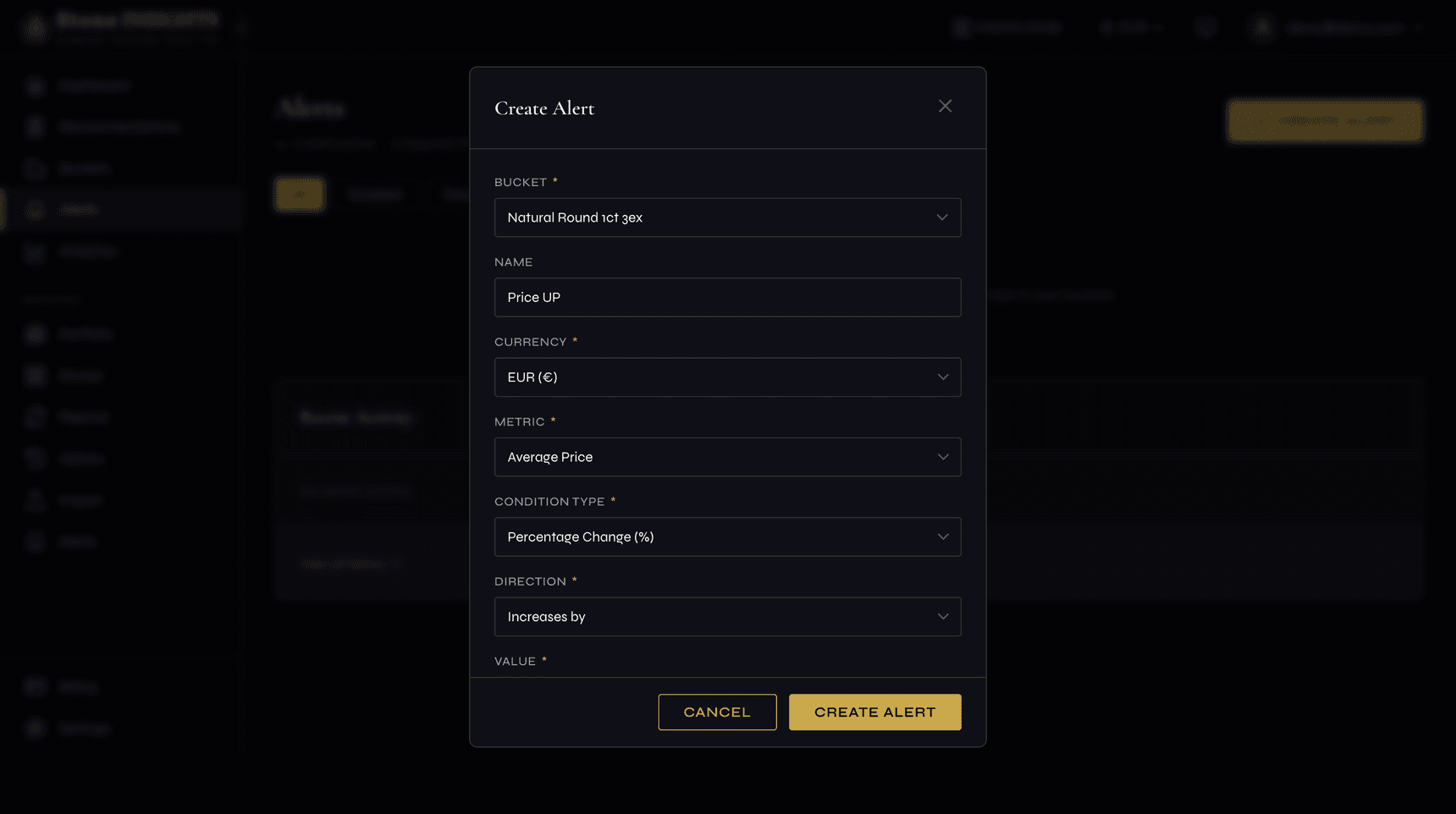
/app/alerts). Alternatively, open any bucket detail page and switch to the Alerts tab. - Click Create Alert. The alert form modal opens.
- Select a Bucket from the dropdown. If you opened the form from a bucket's Alerts tab, the bucket is pre-selected.
- Optionally enter a Name — a short label to help you identify this alert in a long list.
- Choose a Currency (EUR, USD, GBP, or AUD). The alert evaluates prices in this currency.
- Pick a Metric — the price statistic to monitor. Options: Median Price, Average Price, Minimum Price, Maximum Price, 25th Percentile (P25), or 75th Percentile (P75).
- Select a Condition Type:
- Percentage Change — fires when the metric moves by a percentage over a period.
- Absolute Change — fires when the metric moves by a fixed currency amount over a period.
- Price Threshold — fires when the metric crosses a specific price.
- Set the Direction. For change conditions this is "Increases by" or "Decreases by." For thresholds it is "Rises above" or "Falls below."
- Enter the Value — the percentage, currency amount, or price level that triggers the alert.
- If you chose Percentage Change or Absolute Change, set the Period (days) — the lookback window from 1 to 90 days.
- Click Save. The alert appears in your list and starts monitoring immediately.
Monitor and manage alerts
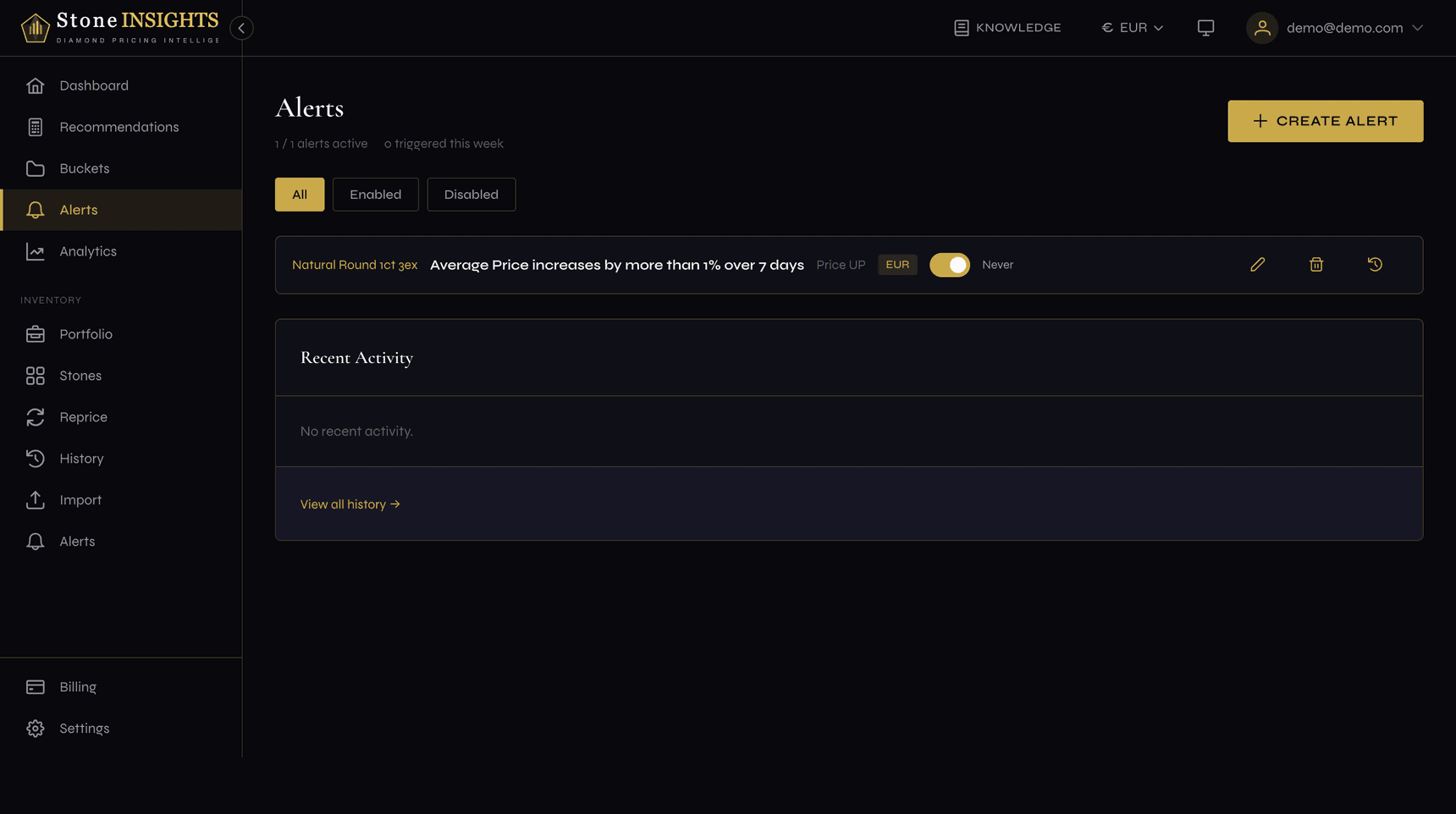
- Return to the Alerts page. The summary bar at the top shows active alerts, triggered-this-week count, and plan usage.
- Use the filter tabs — All, Enabled, Disabled — to narrow the list.
- Toggle an alert on or off with the switch next to its name. Disabled alerts stop evaluating but keep their configuration.
- Click the history icon on any alert to open the Alert History Panel, which shows every time that alert fired — with old value, new value, absolute change, and percentage change.
- For a global view, click Alert History in the page header (or visit
/app/alerts/history). Filter by date range to review triggers across all alerts.
Field reference
Bucket (required) The bucket whose market data this alert monitors. One bucket can have many alerts, but each alert belongs to exactly one bucket.
Name (optional) A free-text label up to 255 characters. If left blank, the platform generates a descriptive title from the condition — for example, "Median Price decreases by 5 % over 7 days."
Currency (required) The currency in which the alert evaluates prices: EUR, USD, GBP, or AUD.
Metric (required) The price statistic to track. Choose from Median Price, Average Price, Minimum Price, Maximum Price, P25, or P75.
Condition Type (required) How the alert decides to fire. Percentage Change and Absolute Change compare the current value to the value N days ago. Price Threshold compares the current value to a fixed number.
Direction (required) Whether the alert fires on an upward or downward move. Labels adapt to the condition type — "Increases by / Decreases by" for changes, "Rises above / Falls below" for thresholds.
Value (required)
The trigger amount. For Percentage Change this is a percentage (e.g. 5 means 5 %). For Absolute Change this is a currency amount. For Price Threshold this is the price level. Must be a positive number.
Period (days) (required for change conditions) The lookback window in days, from 1 to 90. Only applies to Percentage Change and Absolute Change. Not shown for Price Threshold.
Tips and common mistakes
Plan limits apply to the total number of alerts across all buckets. The summary bar on the Alerts page shows your usage. If the Create Alert button is disabled, you have reached your plan's limit.
The history page is not just a log — it is a tuning tool.
Next step
Next: Read Market Analytics →